Thursday, March 26, 2009

Creating a caseTRACK "Cheatsheet"

The Dilema

Different programs use caseTRACK in a variety of different ways. In one program, specifying a valid Medicaid billable mental health diagnosis is high on the priority list. For other programs not providing Medicaid billable services this is not important.

Some programs are split into several different "components" in caseTRACK and other programs are contained in themselves.

Most programs have a need to count each family member involved a "case", but others may only need to account for one person in a family.

A program may cross regions and another might be specific to a single region.

All these issues require carefull consideration when implementing and maintaining your program's data in caseTRACK.

The Suggestion

Most programs have procedures and documentation for day to day operations. But how many have similar documentation for the program's data requirements? In my experience...very few.

If you would like to put together a program specific "cheatsheet", here is a suggestion on how to start.

  • Think in terms a brand new employee. Just as you might provide a new employee with your Operations Procedures or a user guide for caseTRACK a cheatsheet that puts 2 and 2 together can help tremendously.
  • Describe your Program. As mentioned above, some programs are split into multiple “components” inside caseTRACK. If this is the case, list and describe the program components.
  • Address Admissions and Discharges. Some programs receive a bunch of referrals with only a fraction of those referrals becoming clients. Describing when a client becomes a client and when they are discharged will help with the consistency of your data.
  • Specify what portions of caseTRACK are top priority. caseTRACK contains many different features that could be overwhelming for a user. Highlight those features and functions most critical to your program. What referral sources are used? What funders pay for the program? What services do they pay for? What are the critical tasks and requirements for your program ? Do you need to use 'Other Identification' to group clients together as a unit? What reports are need to be used and how are they used?
  • Keep it simple. Try to limit your cheatsheet to 1 or 2 pages. Refer to your Operations Procedures or the caseTRACK user manual for more detailed information.
Puting together a quick reference guide for users in your department will hopefully help to ensure consistent and valid data entry. Along the way it may also help you identify some additional needs your program may have that can be resolved inside caseTRACK.

Let me know if you have any other suggestions or would like some help putting together your caseTRACK "cheatsheet".

Tuesday, February 10, 2009

Reports Spotlight: Total Billable Units

There are several reports in caseTRACK designed to help a manager quickly review the productivity of their workers. The "Total Billable Services by Worker" and "Total Billable Services by Funding Source" are two of these reports.

Report Descriptions

The "Total Billable Services by Worker" report allows managers to view a summary of the billable services recorded by workers based on a specific division and date range. The report is grouped by Supervisor and Service Code and the total billable units are summarized.

The "Total Billable Services by Funding Source" report also allows managers to view a summary of the billable services recorded by the workers based on a specific division and date range. The report is grouped by Location and Service Code and the total billable units are summarized.


In order to view these reports you must be in one of these caseTRACK roles:

  • Compliance
  • Executive Director
  • Program Director

The reports an be found by clicking on Reports > Productivity and then click on the respective report.

Report Use


If weekly or monthly targets have been established for your workers, these reports can serve as a quick reference to see if your workers are hitting those billing targets for those specified time frames.

While it is not an exact science as some workers may have been sick or on vacation these reports can show you at a glance the productivity of your workers.

Monday, January 26, 2009

Using QuickLinks For More Efficient Data Entry

The ‘My QuickLinks’ feature was created to make for more efficient navigation throughout caseTRACK.

With QuickLinks, you can:
  • Customize your caseTRACK client page so that the details you add most frequently appear at the top of the page.

  • Order your commonly used links in an order that makes sense to you.

  • And add details without scrolling down the page to find the ‘Add CFARS’ or ‘Add Progress Note’ links.

To set up ‘My Quicklinks’

1. Open a client's record.
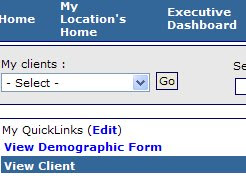
2. Find My QuickLinks above the View Demographic Form link, on the left side of the screen.
3. Click Edit.

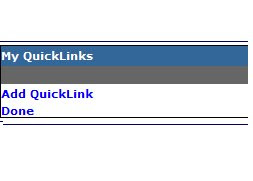
4. Click Add QuickLinks.


5. At Link select, the QuickLink you would like to add.

Note: The links you can see are limited to the functions you have permissions to.

6. Use the Sort Position select to set the position that you want your section to appear.

For example: if you use Progress Notes regularly, make this selection number 0 or 1. If you set all your sort positions to the same number, the QuickLinks will appear in alphabetical order.

7. Click the 'Save' button.

8. Now you can click on Add QuickLinks to add more links or click Done if you are finished adding your QuickLinks.

Monday, December 8, 2008

Submit your Medicaid (and Medicaid HMO) Services to Billing

This tutorial will walk you through the new signoff procedure built into caseTRACK to submit your Medicaid and Medicaid HMO Billable Services to billing.

In order to complete this tutorial, you must record at least 1 billable Medicaid (or Medicaid HMO) progress note.

It is also important to note that, in order to receive timely payments, there are steps you need to take prior to the submission of services to Medicaid Billing. These steps include making sure your clients’ records are complete in caseTRACK and verifying client eligibility.

First, make sure your clients’ records are complete including an active primary address, primary funding source and Medicaid billable mental health diagnosis.


Tickler reports are provided on your Home Page that will help you monitor these items.

Eligibility or funding source information can be verified by using MEVSNET and the individual HMO websites.

The “Units Remaining…” reports should also be monitored on a regular basis to prevent the exhausting of authorized units.

After verifying your client records are complete and up to date, you are ready to go. Now, click on the Service Signoff link on the main toolbar.

The options that appear are limited by your role.


Submit to Supervisor

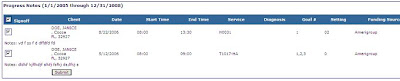
This link is provided to workers who record their own services and provides ones last look at their services before submitting to their supervisor. Services returned are limited to notes with no status or services rejected by their supervisor.

The list generated is based on the worker who provided the services and the date the service was created. Note: The listing is not based on Service Date.


A confirmation page is generated when the services are submitted with a batch number. This page can be retained for future reference.


Supervisor: Submit to Billing

This link is provided to supervisors whose workers have services associated to them and provides ones last look at the services before submitting to billing. Services returned are limited to notes not yet marked as approved by the supervisor.

The list generated is based on the worker who provided the services and the date the service was created. Note: The listing is not based on Service Date.


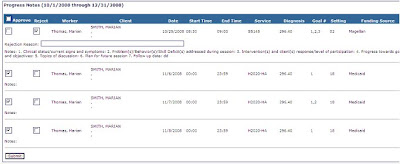
A supervisor has the ability to approve or reject a worker’s service. If Reject is selected, a Rejection Reason text box will appear and allow the supervisor to make a comment regarding what needs to be corrected.

A confirmation page is generated when the services are submitted with a batch number. Both Rejected and Approved Services will appear on the confirmation screen. This page can be retained for future reference.


Compliance: Submit to Billing

This link is similar to the Supervisor Signoff screen and is provided for users in a compliance role or users who enter services for a contracted physician or other non-CIS user and provides ones last look at the services before submitting to billing. Services returned are limited to notes not yet marked as approved.

The list generated is based on the worker who provided the services and the date the service was updated. Note: The listing is not based on Service Date.

A confirmation page is generated when the services are submitted with a batch number. This page can be retained for future reference.

If you would like clarification or have a caseTRACK tip you would like to share, please contact the CIS Helpdesk.