This tutorial will walk you through the new signoff procedure built into caseTRACK to submit your Medicaid and Medicaid HMO Billable Services to billing.
In order to complete this tutorial, you must record at least 1 billable Medicaid (or Medicaid HMO) progress note.
It is also important to note that, in order to receive timely payments, there are steps you need to take prior to the submission of services to Medicaid Billing. These steps include making sure your clients’ records are complete in caseTRACK and verifying client eligibility.
First, make sure your clients’ records are complete including an active primary address, primary funding source and Medicaid billable mental health diagnosis.
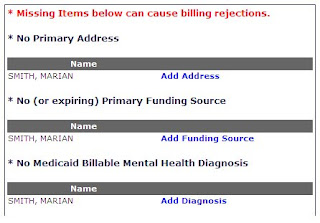
Tickler reports are provided on your Home Page that will help you monitor these items.
Eligibility or funding source information can be verified by using
MEVSNET and the individual HMO websites.
The “Units Remaining…” reports should also be monitored on a regular basis to prevent the exhausting of authorized units.
After verifying your client records are complete and up to date, you are ready to go. Now, click on the Service Signoff link on the main toolbar.
The options that appear are limited by your role.
 Submit to Supervisor
This link is provided to workers who record their own services and provides ones last look at their services before submitting to their supervisor. Services returned are limited to notes with no status or services rejected by their supervisor.
The list generated is based on the worker who provided the services and the date the service was created. Note: The listing is not based on Service Date.
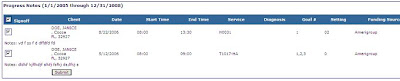
A confirmation page is generated when the services are submitted with a batch number. This page can be retained for future reference.
 Supervisor: Submit to Billing
This link is provided to supervisors whose workers have services associated to them and provides ones last look at the services before submitting to billing. Services returned are limited to notes not yet marked as approved by the supervisor.
The list generated is based on the worker who provided the services and the date the service was created. Note: The listing is not based on Service Date.
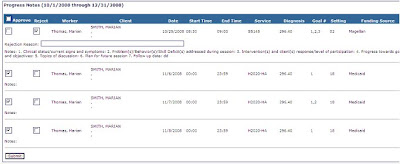
A supervisor has the ability to approve or reject a worker’s service. If Reject is selected, a Rejection Reason text box will appear and allow the supervisor to make a comment regarding what needs to be corrected.
A confirmation page is generated when the services are submitted with a batch number. Both Rejected and Approved Services will appear on the confirmation screen. This page can be retained for future reference.
 Compliance: Submit to Billing
This link is similar to the Supervisor Signoff screen and is provided for users in a compliance role or users who enter services for a contracted physician or other non-CIS user and provides ones last look at the services before submitting to billing. Services returned are limited to notes not yet marked as approved.
The list generated is based on the worker who provided the services and the date the service was updated. Note: The listing is not based on Service Date.
A confirmation page is generated when the services are submitted with a batch number. This page can be retained for future reference.
If you would like clarification or have a caseTRACK tip you would like to share, please contact the CIS Helpdesk.




 Posts
Posts

